About this tool
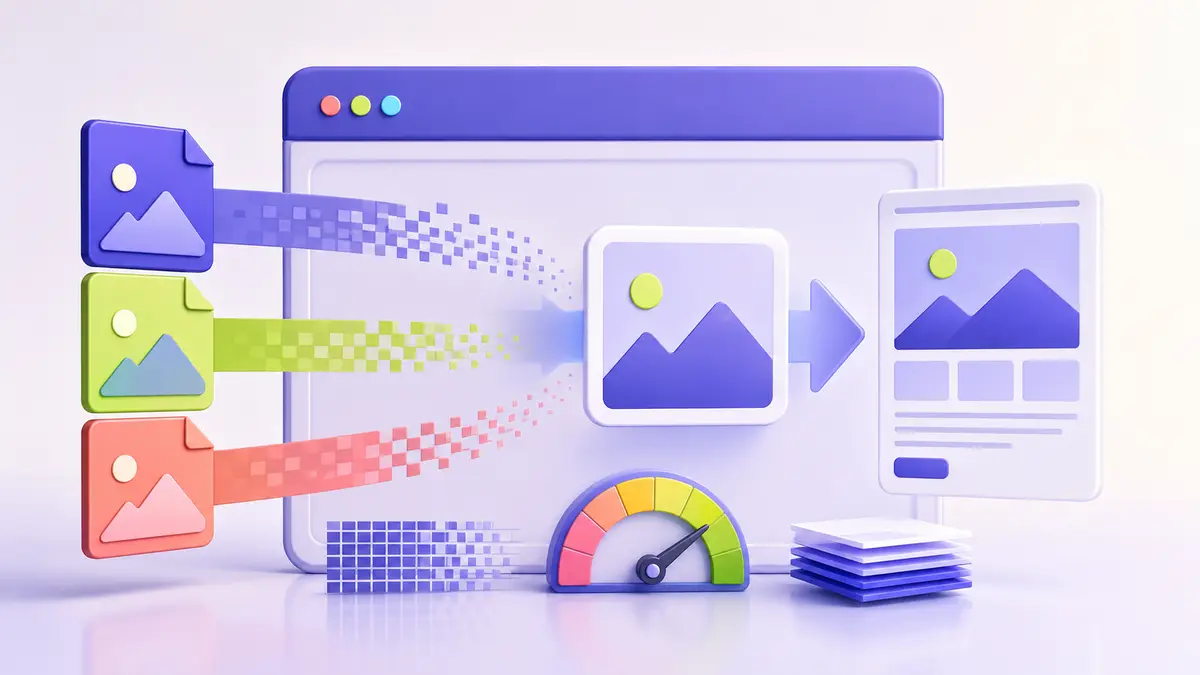
Compress Image is designed for one clear job: Reduce image size while keeping the best practical quality. The operation runs in the browser, so you can prepare and inspect the result without sending the file to a conversion server.
Format details
IMAGE
IMAGE is part of this workflow. Its practical value depends on compatibility, file size, fidelity, editability, and the application that will open the result.
- Quality
- 3/5
- Transparency
- —
- Editing
- Codec/format dependent
- Web use
- 3/5
- Compatibility
- 3/5
When to use it
- Business: Prepare a compatible delivery copy for customers, partners, or an internal system.
- Education: Submit coursework in the required format while retaining the editable master.
- Personal: Make a file easier to open, share, store, print, or publish.
- Professional: Standardize an asset before review, archiving, automation, or production.
How to use the tool
- Open Compress Image in a current browser.
- Choose a copy of the source file or enter the requested text.
- Review the available options and start with balanced settings.
- Run the operation and wait for the local preview or result.
- Inspect the most important pages, pixels, fields, tracks, or values.
- Download the result with a clear file name and keep the original.
Best practices
- Keep the original until you verify the result.
- Use the best available source instead of converting an already degraded copy.
- Change one important setting at a time so the effect is easy to compare.
- Test the result in the application and device used by the recipient.
- Check dimensions, page order, transparency, timing, links, and metadata when relevant.
- Use a descriptive output name that records the operation or version.
Common mistakes
- Replacing the only copy of an important source.
- Assuming a renamed extension is the same as a real conversion.
- Choosing maximum compression or an extreme setting before testing.
- Ignoring unsupported features such as layers, fonts, transparency, forms, or embedded tracks.
- Downloading the result without opening it.
- Sharing a sensitive file without checking its name and metadata.
Frequently asked questions
Does Compress Image upload my file?+
No. Supported file processing runs in your browser. Normal page requests and anonymous measurements may still be recorded.
Do I need to install software for Compress Image?+
No. Use a current browser with enough free memory for the size and complexity of the file.
What files work best with Compress Image?+
Use a valid, undamaged source. Password protection, unusual codecs, or unsupported embedded features can prevent processing.
Will Compress Image preserve the original quality?+
The source remains unchanged. Output quality depends on the operation, chosen settings, and limits of the result format.
Can I use Compress Image on a phone?+
Yes, when the mobile browser supports the required file APIs and has enough memory. Large media is usually easier on a desktop device.
Why can a large file take longer?+
Browser processing uses the device processor and memory. Resolution, duration, page count, compression, and other open tabs all affect time.
How should I verify the Compress Image result?+
Open the download in a second viewer and check the content that matters most: pages, dimensions, text, transparency, timing, links, or data.
Does Compress Image recover information already lost?+
No. Conversion cannot recreate missing pixels, fonts, layers, metadata, audio detail, or document structure that is absent from the source.
Is Compress Image suitable for confidential files?+
Local processing reduces exposure, but you should still use a trusted device, review metadata and file names, and follow your organization’s policy.
What should I do if Compress Image fails?+
Confirm the source opens normally, try a smaller valid file, close memory-heavy tabs, use balanced settings, and keep the original.
Continue your workflow
Compress Image is most useful when the output has a defined destination and a clear acceptance check. Keep the master file, verify the downloaded result, and then continue with a related tool only when another change is genuinely required.