PDF Guides

How to Split a PDF and Keep Only the Pages You Need

A practical way to separate selected PDF pages in your browser, check the order, and save a smaller file without uploading the document.

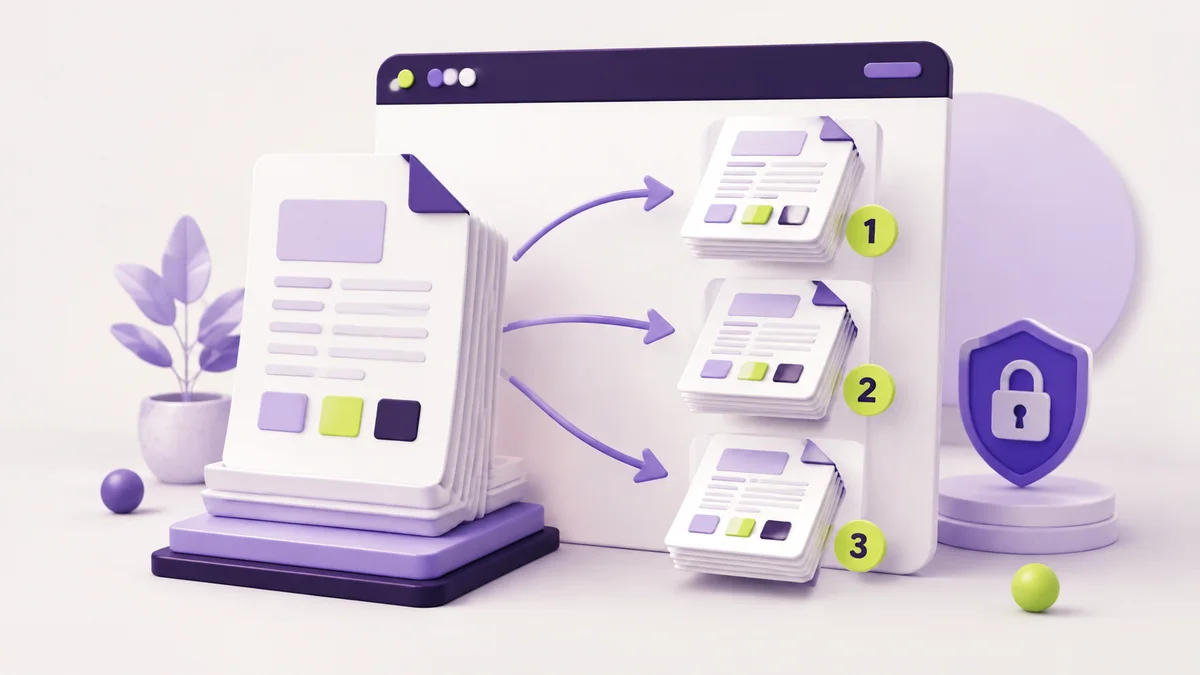
Illustration of selected PDF pages being separated in a browser

A practical way to separate selected PDF pages in your browser, check the order, and save a smaller file without uploading the document.

Start with the page list, not the button

Open the PDF once and note the exact pages you need. Page numbers printed inside a document can differ from the viewer count when a cover or blank page comes first, so verify with thumbnails before splitting.

Choose a range that you can check

Use Split PDF for one continuous range, or repeat the process for separate groups. Name each result by purpose—such as contract-pages-3-7—rather than adding final or new to an unclear filename.

Review the result before sharing

Open the new PDF and check the first page, last page, order, links, and orientation. Keep the original until the recipient confirms the smaller document is complete.
Related articles

How to Convert PDF to Word OnlinePDF Guides

How to Convert PDF to Word Online

A practical workflow for turning a PDF into an editable Word document while checking layout, fonts, tables, and privacy.

How to Compress a PDF Without Losing QualityPDF Guides

How to Compress a PDF Without Losing Quality

Learn what makes a PDF large and how to reduce its size without making text or images difficult to read.

What Is OCR and How Does It Work?PDF Guides

What Is OCR and How Does It Work?

A plain-language explanation of optical character recognition, its limitations, and how to check extracted text.

How to Merge PDF Files in Your BrowserPDF Guides

How to Merge PDF Files in Your Browser

Combine PDF documents in the correct order while checking pages, privacy, and the final output.