Start with the kind of PDF you have
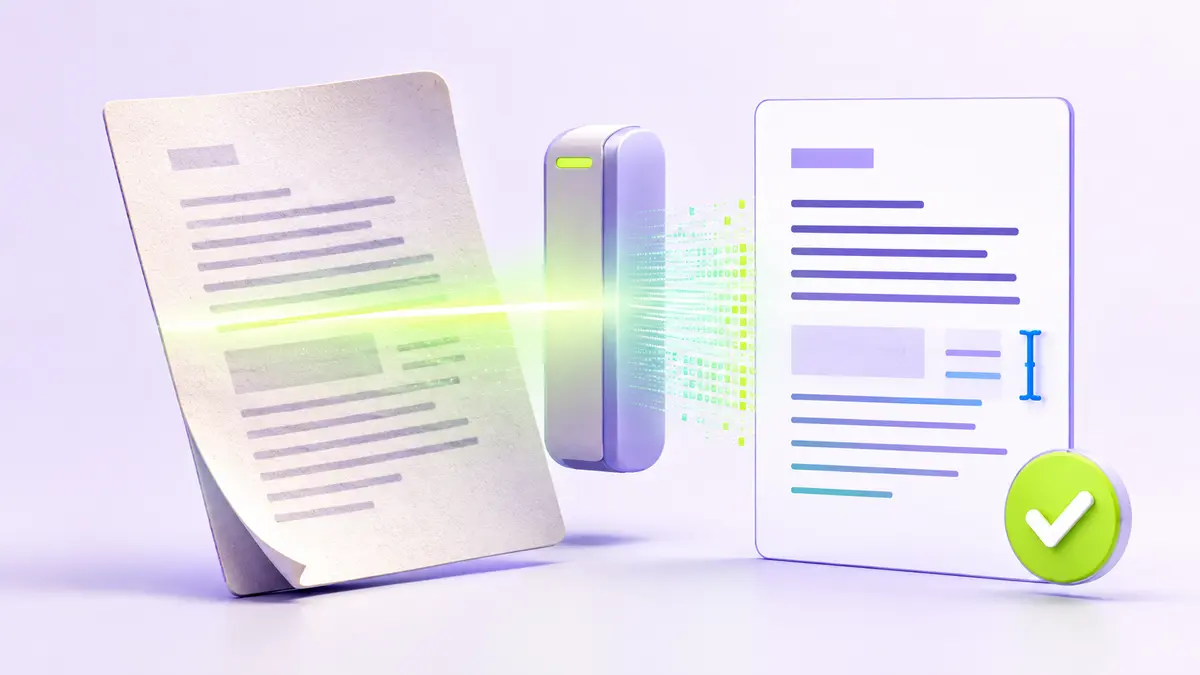
A PDF can contain real text, scanned page images, or a mixture of both. That distinction determines how well a Word conversion will work. If you can select and copy a sentence in the PDF, the document probably contains a text layer. If every page behaves like one large image, it will need optical character recognition (OCR) before the text becomes editable.
Convert the document in a controlled workflow
- Keep an untouched copy of the original PDF.
- Open the PDF to Word tool and select the file you want to convert.
- Run the conversion and save the resulting DOCX with a clear name.
- Open the DOCX and compare it with the PDF page by page.
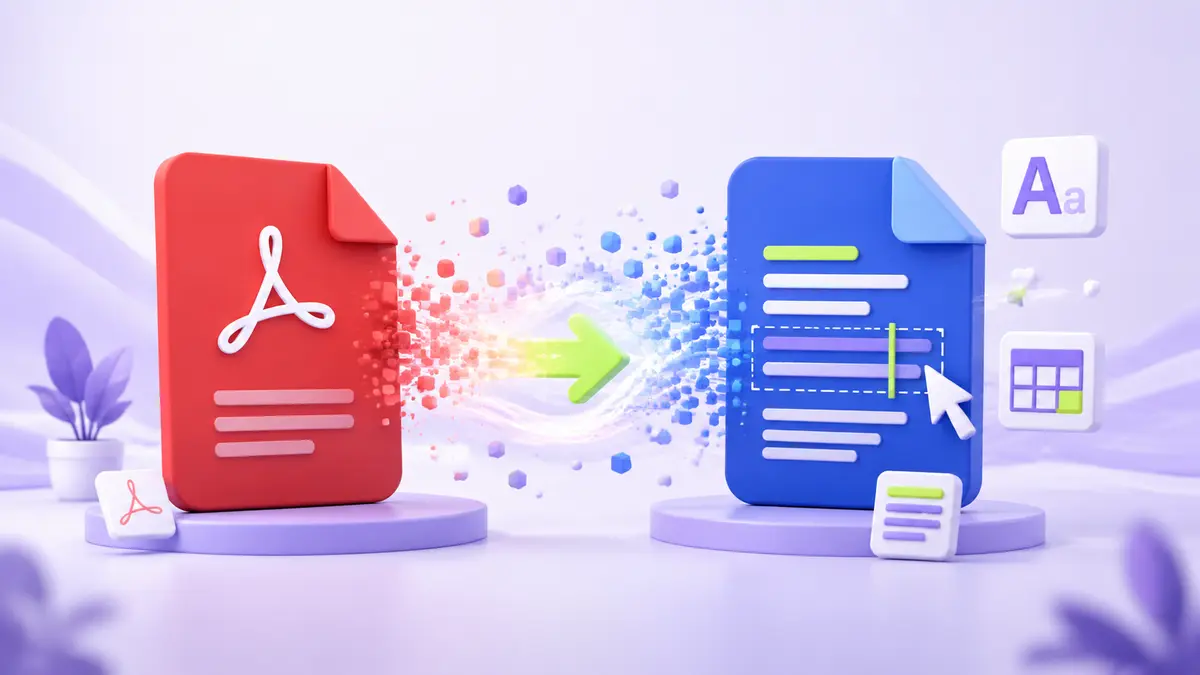
Complex columns, embedded fonts, handwritten notes, and tightly positioned graphics may need manual correction. Conversion software has to infer a flowing Word layout from a format designed to preserve fixed page positions.
Check the result before using it
Review headings, page breaks, lists, tables, hyperlinks, headers, and footers. Confirm that numbers and names were not altered. For a scanned document, pay particular attention to similar characters such as zero and the letter O. A quick visual check is useful, but important documents deserve a text-level review as well.
Protect confidential documents
Prefer a workflow that processes the file in your browser when the tool supports it. Browser processing can keep the selected file on your device, although you should still check the tool’s privacy explanation and understand any feature-specific limitations. Remove unnecessary metadata before sharing the final document, and avoid converting sensitive material on a shared computer.